How to Install a Downloaded Minecraft Skin (Java & Bedrock)
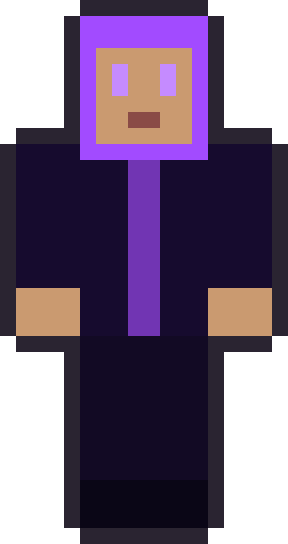
Installing a downloaded Minecraft skin takes about a minute, and the steps depend only on which edition you play. On Java Edition you upload the PNG to your Microsoft account; on Bedrock Edition you import it inside the game. This guide walks through both, using one of our free skins as the test file so you can follow along start to finish.
First, grab a skin to practise with. Any of these works — download one now and keep the PNG somewhere you'll find it, like your desktop or downloads folder.
Pick a test skin
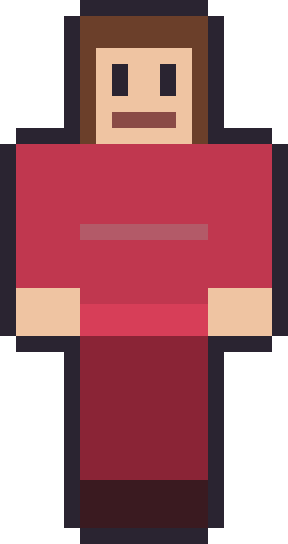
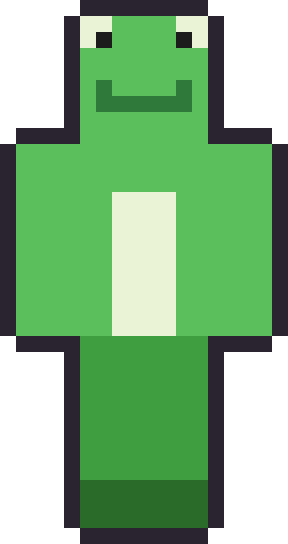
3 skinsDownload one of these to follow the steps below. Free 64×64 PNGs.



Installing a skin on Java Edition
On Java, skins live on your Microsoft account rather than in a game folder, so you apply them through a web page. Sign in to your account's Minecraft profile page, find the Skins section, and choose to upload a new skin. Select the PNG you downloaded, pick the classic model (all our skins are classic), and save.
The change takes effect the next time the game checks your profile — usually immediately, but if the launcher was already open, restart it. That's the whole process: no mods, no resource packs, no files to drop into a folder. The uploaded skin stays on your account until you change it, across every world and server you join.
Installing a skin on Bedrock Edition
On Bedrock — phones, tablets, consoles and Windows — you don't touch a website at all. From the main menu, open the skin picker (the coat-hanger icon, sometimes called the Dressing Room). Choose the option to import or add a custom skin, browse to the PNG you saved, and select it. Confirm the model as classic and you're done.
On console the file needs to be somewhere the console can reach, which usually means downloading the skin on the console's own browser or transferring it in first; the import step itself is the same. Once imported, the custom skin sits in your Dressing Room alongside the default ones, so you can switch back and forth whenever you like.
Quick fixes if it isn't showing
If you applied a skin and still see your old one, the usual cause is caching. Restart the game or launcher, and on a server give it a minute or rejoin — servers cache skins and take a moment to catch up. This is almost never a problem with the file itself.
If the upload is rejected, check two things: that the file is a PNG (not a renamed JPG) and that it's 64x64. Every skin we publish is already a correct 64x64 PNG, so a download from here won't hit that problem — but it's the first thing to verify with files from anywhere else. Finally, if arms look slightly wrong, you likely applied a classic skin to the slim model; re-upload and choose classic.
A few Bedrock realms and servers aimed at younger players disable custom skins entirely. If yours does, your custom skin still applies everywhere else — it's the realm's setting, not your file, and there's nothing to fix on your end.
Saving the file correctly first
Most install problems actually start at the download, so it's worth doing that part deliberately. When you grab a skin here, use the Grab button on the card — it downloads the exact 64x64 PNG. Avoid right-click-saving the character preview image instead; the preview is an enlarged picture for the gallery, not the skin file, and it won't work in-game. The download button always gives you the real thing.
Once downloaded, note where the file went — usually a Downloads folder — and leave it as a PNG. Don't open and re-save it in a photo app that might convert it to JPG or strip its transparency, because either will break it. If you're on a phone, the file goes to your device's downloads or photos; you'll point the game's importer at it in the next step. Getting a clean PNG in a known location is half the battle.
Switching skins and keeping favourites
There's no limit on how many times you can change your skin, and switching back is just as easy as switching in. On Bedrock, every skin you import stays in your Dressing Room, so you build up a little wardrobe you can flick between — one for building, one for PvP, a funny one for hanging out. On Java, uploading a new skin simply replaces the current one, but you can re-upload any PNG you've kept, so save the files you like in a folder.
Because our skins are free and there's no account gate, there's no reason to stick with one. Download a handful, keep the PNGs, and treat them as outfits you change with your mood or the world you're playing. That's the whole idea behind a stash of skins rather than a single pick — variety costs nothing here.
A quick word on the two editions, since it trips people up: Java and Bedrock are separate versions of the game with separate skin systems, and which steps you follow depends entirely on which one you own. If you're on a PC and bought the game through the Minecraft launcher, you likely have both and can pick either. If you're on a phone, tablet, Nintendo Switch, PlayStation or Xbox, you're on Bedrock. When in doubt, the presence of an in-game coat-hanger skin icon on the main menu means you're on Bedrock and should use the import method rather than the website upload.
Whichever edition you're on, the skin is tied to you, not to a particular world. Once it's applied it shows up in single-player, on your own realm and on other people's servers alike (unless a server disables custom skins). So you only have to do this once per skin change — there's no need to reapply it every time you join somewhere new.
Where to go next
That's everything you need to wear a downloaded skin. Now go pick a real one — the cool Minecraft skins pack is the biggest set on the site — or if you'd rather build your own from one of ours, the guide to designing your own skin picks up from here.
Installing a downloaded skin — FAQ
Where do I put a downloaded skin file?
On Java you don't put it in a folder — you upload the PNG at your Microsoft account's Minecraft profile. On Bedrock you import it in the in-game skin picker. There's no drag-into-folder step.
Why is my skin not showing after I applied it?
Almost always caching. Restart the launcher or game, and on a server wait a minute or rejoin so it can catch up. The file is usually fine.
Do I choose classic or slim?
Choose classic — every SkinStash skin is drawn for the 4-pixel-arm classic model. It will still load on slim, but the sleeves sit a pixel wider.
The game rejected my skin file — why?
It's usually not a real PNG or not 64x64. Skins downloaded here are already correct 64x64 PNGs, so re-download and try again if a file from elsewhere fails.
Want the flagship set? Browse the full cool Minecraft skins pack — the biggest locker on the site.