Designing Your Own Minecraft Skin (Start From a Free One)
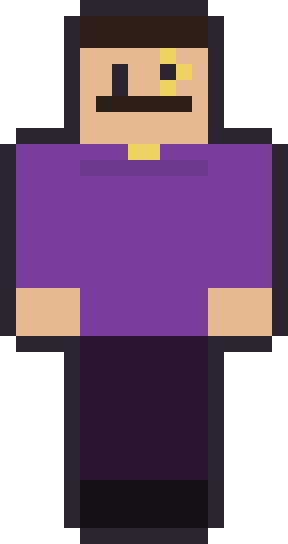
The easiest way to design your own Minecraft skin is to start from a finished one and change it, rather than opening a blank 64x64 grid and freezing. Editing a real skin gives you a working base — correct proportions, a face that already reads, clothes that already fit the body — so your job becomes making choices, not solving a puzzle. Every skin on this site is free to use as that base.
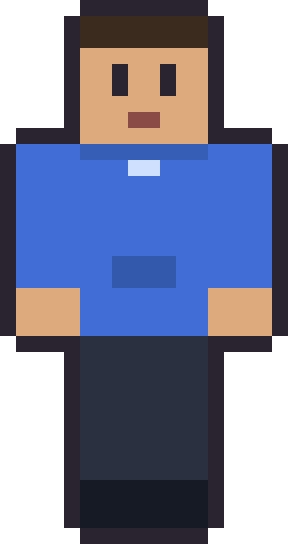
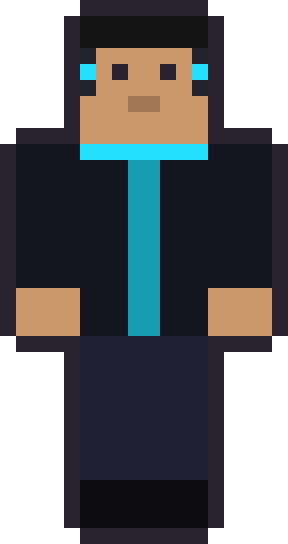
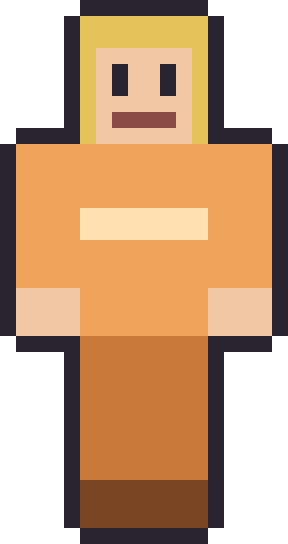
Pick a starting point that's close to your idea. Want a personal everyday look? Start from a hoodie. A character with a signature colour? Start from something plain and recolour it. Here are four good bases to build on.
Good bases to edit
4 skinsDownload one and open it in a pixel editor. Free 64×64 PNGs, yours to change.




What you need to edit a skin
You need two things: the skin PNG, and a pixel editor. Any image program that handles PNG transparency will technically work, but a dedicated pixel or skin editor makes it far easier because it zooms cleanly, shows a grid, and often previews your character in 3D as you paint. A browser-based skin editor is the most beginner-friendly option — nothing to install, and you can see the model turn while you work.
Whatever tool you choose, the workflow is the same: open the downloaded PNG, edit it zoomed in, and export it as a 64x64 PNG when you're done. Keep the original file untouched and work on a copy, so you always have the clean base to fall back to if an edit goes wrong.
Edit one thing at a time
The single best habit for a good result is to change one element and stop. Recolour the shirt, then look at the whole character. Happy? Now change the hair. This sounds slow, but it's the opposite — it's how you avoid the muddy, over-edited look that comes from touching everything at once. Most skins that go wrong went wrong because someone changed five things before judging any of them.
Start with colour, because it's the highest-impact, lowest-risk change. Swapping a hoodie from blue to your favourite shade already makes the skin feel like yours without any drawing skill. Then move to the face — a small change to the eyes or mouth changes the whole personality. Save clothing shapes and accessories for last, once the colours are settled.
Know your layout before you draw
A little knowledge of the file layout saves a lot of frustration. The head's front face is the square you'll edit most; the overlay layer is where hair volume, hoods and ears live and should stay mostly transparent. If you paint on the wrong square, a detail ends up on the back of your head or inside a sleeve. Our 64x64 format guide maps every region, and it's worth a five-minute read before your first edit.
Two small technique tips go a long way. Add gentle shading by using a slightly darker version of a colour on one side of each limb — most of our skins already do this, so study how the sides are a touch darker than the fronts. And keep the outline of the character clean; clutter around the edges reads as noise at Minecraft's scale, while a crisp silhouette reads as intentional.
Finishing and using your skin
When you're happy, export as a 64x64 PNG and apply it exactly like any download: upload on Java, or import on Bedrock. Our install guide covers both. There's no limit on how often you can change your skin, so treat your first edit as a draft — wear it for a session, then go back and refine whatever bugged you.
One courtesy: because you started from our art, please keep your edited version for your own use rather than re-uploading it as a fresh pack elsewhere. Making it for yourself, your friends or your server is exactly what these bases are for — that's the whole point of giving them away.
Three edits that always improve a skin
If you're not sure where to start, three edits reliably make a skin look better. First, side shading: pick one side of the body as the shadow side and darken every limb face on that side by a shade. It instantly gives the flat character some depth. Second, a consistent accent: choose one colour and repeat it in two or three small places — a stripe, the shoes, a detail on the head — so the eye reads a theme.
Third, clean the silhouette: zoom out and check the character's outline against a plain background. Any stray pixel or fuzzy edge on the outline reads as a mistake, while a crisp edge reads as deliberate. These three moves need no artistic talent — they're just discipline — and together they're the difference between a skin that looks thrown together and one that looks designed.
Getting unstuck when it looks wrong
Sometimes an edit just looks off and you can't say why. Nine times out of ten it's one of two things: too many colours, or lost contrast. Count your colours — if you're past five or six on the body, mute or merge some. Then check contrast: if the whole skin drifted to a similar brightness, it goes flat and muddy. Push one area darker or lighter to bring the shape back. Fixing those two usually rescues a struggling skin.
And if it's truly not working, go back to the clean base you saved and start again from there — this is why keeping the original untouched matters. There's no cost to a failed attempt when the base is free and you kept a copy. Some of the best skins come out of the second or third try, once you've learned what didn't work the first time.
Where to go next
Ready to pick a base? The cool Minecraft skins pack is full of high-contrast looks that are especially satisfying to recolour, and every other pack on the site is fair game too. Download one, change one thing, and you've designed your own skin.
Designing your own skin — FAQ
Do I need to be able to draw to make a skin?
No. Starting from a finished skin and recolouring it needs no drawing skill at all — changing the shirt or hair colour already makes it yours. Drawing only comes in if you want to add new details.
What's the best tool for editing a skin?
A pixel or skin editor that zooms cleanly and shows a grid. A browser-based skin editor is the most beginner-friendly, since there's nothing to install and it previews the 3D model as you work.
Can I use your skins as a base for my own?
Yes — that's what they're for. Edit them for yourself, your friends or your server. The only ask is that you don't re-upload your version as a new pack elsewhere.
What size do I export my finished skin?
64x64 pixels, as a PNG with transparency preserved on the overlay layer. That's the standard modern skin size and what both Java and Bedrock expect.
Want the flagship set? Browse the full cool Minecraft skins pack — the biggest locker on the site.