64x64 Minecraft Skins Explained (with Free Downloads)
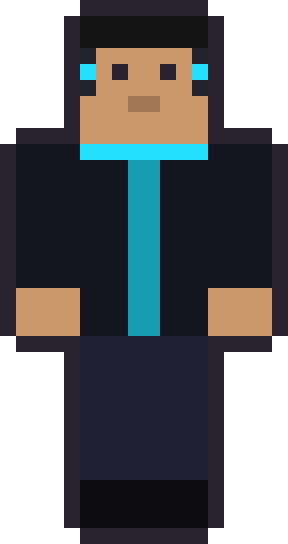
A 64x64 Minecraft skin is a single PNG image, 64 pixels wide and 64 pixels tall, that the game wraps around your character like a papercraft net. Every skin on this site is in that format, and this guide explains what the file is doing — which part of the image becomes which part of your body, why 64x64 replaced the old 64x32, and what "classic" versus "slim" means. Every skin below is a free download you can open and study.
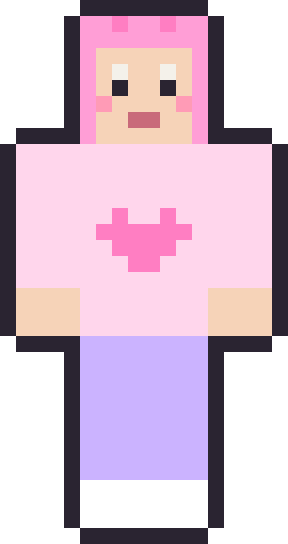
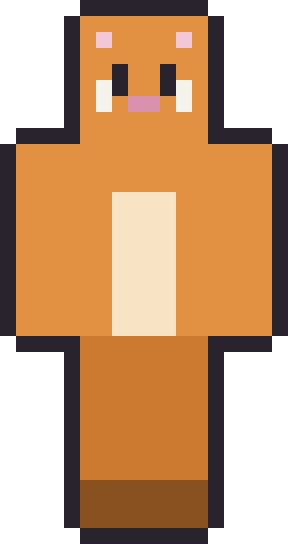
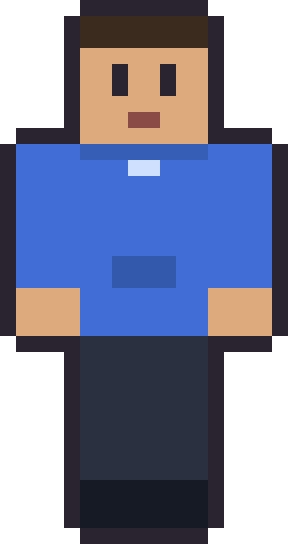
Hover any card to peek the raw 64x64 file behind the character preview — that flat, scattered-looking image is the actual skin. Grab a couple to follow along; they're free and editable.
Study these 64×64 files
4 skinsHover to see the flat texture; download to open it in an editor. Free 64×64 PNGs.




Why 64x64 and not 64x32
The original skin format was 64x32 — only the top half of today's image. It worked, but it had two big limits: the left and right arms shared one texture (mirrored), as did the legs, and there was no room for a second detail layer on the body. The 64x64 format, introduced in the 1.8 update, doubled the height to fix both. Now each limb has its own space, and every body part gets an overlay layer for hair, jackets and accessories.
Old 64x32 skins still load — the game reads them fine — but no one draws new ones, because you give up per-limb detail and the whole overlay system. If you download a modern skin anywhere, including here, it will be 64x64. That's simply the current standard, and it's what makes ears, long hair and layered clothing possible.
How the layout maps to your body
The image is an unfolded net of cubes. The head's six faces sit in the top-left: the front face, where the eyes and mouth go, is the square you'll edit most. The torso, arms and legs each unfold into their own group of six faces — top, bottom, front, back, left and right — laid out in blocks across the image. It looks scattered because it's a flattened 3D net, but every rectangle has a fixed job.
The second, outer set of regions is the overlay — sometimes called the hat or jacket layer. It sits a fraction of a pixel outside the base body and is where hair volume, hoods, glasses and animal ears live. When you hover a card above and see extra shapes floating around the head area of the flat file, that's the overlay doing its work. Learning to spot the head-front square and the overlay is 90% of being able to edit a skin confidently.
Classic vs slim (Steve vs Alex)
There are two body models. Classic (the Steve model) has 4-pixel-wide arms; slim (the Alex model) has 3-pixel-wide arms. A skin is drawn for one or the other, and the arm region is the only real difference. Every skin on this site is drawn classic, at 4-pixel arms.
The good news: a classic skin still loads on the slim model and vice versa. If you apply one of ours to a slim character, the sleeves just sit a pixel wider than intended — usually unnoticeable. When you upload, you pick which model to use; choose classic for the exact look these were drawn for, or slim if you prefer that build and don't mind the tiny arm difference.
Editing a 64x64 skin
Any image editor that handles PNGs with transparency can open a 64x64 skin, but a pixel editor that zooms cleanly and shows a grid is far easier. Work zoomed in, keep transparency intact on the overlay layer (fill it with solid colour only where you want something to show), and test often. Our guide to designing your own skin walks through a first edit using one of these files as the base.
A common beginner mistake is painting on the overlay layer without realising it should stay mostly transparent — fill the whole overlay and you'll box your character in a solid shell. Treat the overlay as a place for deliberate extras (hair strands, a hood, ears) and leave the rest of it clear. Get that one idea and the format stops feeling mysterious.
Transparency and the alpha channel
A 64x64 skin PNG carries an alpha channel — a transparency value for every pixel — and it matters most on the overlay layer. Where the overlay is fully transparent, nothing shows and the base layer beneath is what you see; where you paint solid colour, that becomes hair, a hood or an accessory sitting just outside the body. This is why exporting must preserve transparency: flatten the image onto a white background by accident and the overlay turns into a solid box around your character.
The base body layer, by contrast, should generally be fully opaque — a transparent pixel on the base body can render as a hole in your character. So the simple rule is: keep the base solid, and use transparency deliberately on the overlay. Any editor that saves PNGs with an alpha channel handles this correctly; you just have to make sure "flatten" or "remove transparency" is never switched on when you export.
Common 64x64 mistakes
Three mistakes account for most broken skins. The first is saving as JPG instead of PNG — JPG has no transparency and adds compression smudge, both fatal for a skin. The second is resizing the image away from 64x64; the game expects that exact size, and anything else either fails to upload or scales badly. The third is painting a detail on the wrong face of a cube, so a logo meant for the chest ends up on the character's back.
All three are easy to avoid once you know the format: save as PNG, keep it 64x64, and check which face you're on before you draw. Downloading one of our skins and poking at it in an editor is the fastest way to internalise this — change one square, re-apply it in-game, and watch where the change appears. A couple of those experiments and the layout stops being abstract.
Where to go next
Now that you can read the file, browse the full cool Minecraft skins pack and download a few to take apart. When you're ready to put one in the game, the install guide covers Java and Bedrock step by step.
64x64 Minecraft skins — FAQ
What size is a Minecraft skin?
Modern skins are 64x64 pixels — a square PNG. The older format was 64x32; both still load, but everything new, including our skins, is 64x64.
Why does the skin file look scattered, not like a person?
It's an unfolded net of cubes. Each rectangle is one face of the head, body, arms or legs, laid flat. The game folds it back around your character in 3D.
What's the difference between classic and slim?
Classic (Steve) has 4-pixel arms; slim (Alex) has 3-pixel arms. Ours are drawn classic but still load on slim, where the sleeves just sit a pixel wider.
What is the overlay or 'hat' layer for?
It's a second set of faces sitting just outside the body, used for hair volume, hoods, glasses and animal ears. Keep it mostly transparent and only paint the extras you want.
Want the flagship set? Browse the full cool Minecraft skins pack — the biggest locker on the site.